Using the Configuration Control
 Use the Configuration control to view, create, and edit* device configuration logs or gas analysis records for a single selected Liquid Device Node or Gas Device Node (gas meter, station meter, or chromatograph) at a time, selected from the filtered Node Chooser results. The control helps you quickly review information, distinguish changes between configuration log or gas analysis entries, and optionally send gas quality information to the device. Two data views, configuration and gas analysis, are available for viewing. Gas quality information, for gas device Nodes, can be sent to the device from either data view, depending on the availability of a gas analysis record for that time. You can create up to eight instances of this control.
*Note: Editing functionality is only available in systems licensed for FULL mode.
Each device Node in CygNet Measurement is configured with a variety of settings that impact the calculation of its measurement data, depending on the Node type and its specific circumstances. These device configuration details, and any changes made to them, are tracked and audited by the FMS.
You must have proper security authorization to perform these actions. See FMS Security (and DEVCFG security event) for information about configuring security access for the Configuration control.
See Using the Configuration Data View and Using the Gas Analysis Data View for more information about each data view.
See CygNet Measurement Data Calculation for more information about recalculation implications of editing base condition values (base temperature or base pressure) or heating value basis.
See Gas Analysis and Gas Quality Data in the CygNet Measurement Concepts topic for a discussion about gas quality and gas analysis data.
See CygNet FMS Configuration Control for more information about configuring this control in CygNet Studio.
See FMS Explorer User Interface for more information about the FMS Explorer user interface.
Viewing Configuration Data
Use the Configuration control Chooser pane (unless the Use Session Node option is selected in the Options pane) and Options pane to filter the data to show in the grid. Either pane can optionally be displayed or pinned to the left side.
Chooser Pane
In the Chooser pane (unless Use Session Node is selected), select an available Node in order to view its configuration data in the control. Node selections can be made for various gas device (including station meter) or liquid device Nodes.
The embedded Node Chooser pane is made available in the Configuration control so that you can sort Nodes by group, Node category, and/or filter value options saved in your system, to retrieve a list of Nodes matching your criteria from which to choose a Node for viewing.
Filter Node results by the following values, as defined in your FMS system:
-
Group - General, Station, or By Category
-
Node category - Device, Gas Device, or Liquid Device
-
Filter - Name, Description, or ID
See Using the Node Chooser Control for more information.
Options Pane
In the Session section of the Options pane, define the values for the data you would like to view.
|
Options Pane |
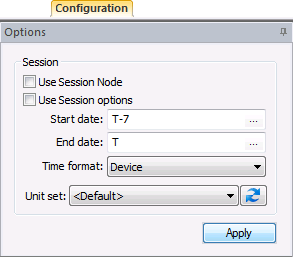
Configuration control options are as follows.
| Option | Description |
|---|---|
| Session | |
|
Click the check box to select/clear the option to Use Session Node instead of using the chooser. Default is selected. |
|
|
Use Session options |
Click the check box to select/clear the option to Use Session options instead of entering a time window and time format. Default is selected. |
|
Start date |
Date selections are in the selected time format. Select the starting date, unless Use Session options is selected. Type the date into the text box or click ... to Select Date. See Selecting Date and Time for more information. |
|
End date |
Date selections are in the selected time format. Select the ending date, unless Use Session options is selected. Type the date into the text box or click ... to Select Date. See Selecting Date and Time for more information. |
|
Time format |
Click to select the desired time format from the drop-down menu, unless Use Session options is selected. Options are as follows.
Default value is Device time. |
|
Unit set |
Select a unit set in which to view the data. Options appear in the drop-down menu, which is populated by the unit sets defined in the service, and includes a default unit set. |
|
|
Refresh the available unit set list. |
|
Apply |
Click to Apply the changes made through the Options pane. Note: When you click Apply on the Options pane, any Node selection that has been made but not applied on the Chooser pane will also be applied. |


Columns
A large variety of data fields can be viewed in the columns of the control grid for either data view. Available column options vary depending on the data view and the Node type selected.
Default and Additional Column Options
When you create a new Configuration control, a default set of columns is displayed in the control for each selected data view. You can modify the default set by adding or removing desired data fields, and by reorganizing the column locations.
See the following sections for information about available columns for each data view.
Managing Configuration Data
Toolbar
Use the Configuration control toolbar to access options to view and manage configuration logs for the device you have selected. See Menus and Toolbars for more information.
|
Configuration control toolbar |

The following options appear on the toolbar; unavailable buttons appear dimmed.
| Option | Description |
|---|---|
|
|
Click to Refresh the control view. Note: The Refresh button will not take into account changes made through the Options pane that have been selected but not yet applied. See Refresh Button for more information. |
|
|
Click to Save data that has been edited. Edited configuration records are not changed until they are committed using the Save action. See Creating or Editing Configuration Log Entries or Viewing or Editing Gas Analysis Records for more information. |
|
|
Click to Cancel uncommitted edits and refresh the control. |
|
|
Click to Open and view the control as a .csv file. |
|
|
[The Print button is not available on this control.] |
|
|
Click to Export the contents of the control to a .csv file. |
|
Data view |
Click the Data view drop-down menu to select the type of data you would like displayed, and refresh the grid. Options are as follows. |
|
Click to access the Configure Filter dialog box to select the source(s) by which to filter the selected control view. Configuration data view options are as follows. Log data sources to show:
Gas analysis data view options are as follows. Data sources to show:
Status to show:
Default is all source/status values selected. |
|
|
Use filter |
Click the check box to select/clear the Use filter option to filter your data view by the selected source(s). |


Context Menu
Right-click within the grid of either data view to access its context menu. Available context menu options vary depending on the data view selected.
Context Menu Options
See the following sections for information about available context menu options for each data view.
More:
 Configuration and Gas Analysis Items That Trigger Recalculation

